What does my mail.de email mailbox include?
In your free mail.de FreeMail mailbox, in addition to the email section, you also have access to an address book, calendar, and mail.de online storage. You have 2 GB of storage space available for emails and files. You can send attachments up to a size of 60 MB.
You can access your mailbox in different ways: Preferably via login on the login page or via mail program, e.g. Outlook, Thunderbird or Apple Mail. For mobile use on smartphone or tablet, we recommend the mail.de Mail App for iOS or Android.
If you need more storage space or would like to use additional features as well as an ad-free interface, we recommend our premium packages.
How can the storage space for my mail.de email mailbox be increased?
In your free mail.de FreeMail mailbox, you have 2 GB of storage space available for emails and files.
If you need more space for your emails or files, we recommend upgrading to one of our premium packages. After an upgrade, the storage space of the respective premium package is immediately available to you.
Our premium products
How can I block a sender?
To block an email sender, you need to create a corresponding rule. Give the rule a name of your choice and then select "Sender email address" and "contains" in the dropdowns for the condition. In the free input field, add the desired email address you wish to block.
In the "Perform the following action" dropdown, select "move to spam".
Detailed instructions on how to create rules can be found here.
How can I set up a forward?
To set up a forward, you need to create a corresponding rule. Give the rule a name of your choice and then select "All" in the dropdown for the condition.
In the "Perform the following action" dropdown, select "forward to". Now enter the desired destination address that should receive the forwarded messages in the free input field on the right.
Note: If you select the condition "All" at this point, every message will be forwarded, including those that would be declared as spam. Please refer to the section "Order of rules" in the following help article. In general, you can easily define your own condition for a forward. This is merely a practical example.
How can I automatically move messages to a folder?
To automatically move a message to a folder, you need to create a corresponding rule. Give the rule a name of your choice and then select the appropriate values in the dropdowns for the condition. It often makes sense to select messages by "Sender of the email" and "contains" with the corresponding email address in the free input field. However, you can choose quite flexibly according to other conditions such as "Subject" and "is exactly".
In the "Perform the following action" dropdown, select "move to". To the right of this, you can now select an existing folder or alternatively create a new folder into which the messages matching the condition should be moved.
Detailed instructions on how to create rules can be found here.
I am having problems receiving emails and am not getting any new emails?
Several possible causes may be considered:
-
First, check the storage space of your email mailbox. Is the storage space 100% full? We send you several warning emails with a notice about your storage fill level.
Check email storage space
After logging in via login page, click on "Homepage" in the main menu. The used and free email storage space is displayed on the homepage in the "Storage" widget.Expand email storage space
You can expand your storage space by simply upgrading to a larger email package.
Our premium products -
Another common cause is an existing "forwarding/rule".
Check and adjust forwarding
In your mail.de email mailbox, click on "Settings" in the top right main menu. In settings mode, find the "Messages" item in the main menu and click on it. On the left side you can select "Rules" and your existing rules will be displayed. If a forwarding rule exists, deactivate this rule to receive emails in your mail.de mailbox again. -
A filter rule deletes incoming emails directly
Check your rules and adjust them
In your mail.de email mailbox, click on "Settings" in the top right main menu. In settings mode, find the "Messages" item in the main menu and click on it. On the left side you can select "Rules" and your existing rules will be displayed. If a rule is shown that deletes your emails directly upon arrival, deactivate this rule to receive emails in your mail.de mailbox again.
Can I change the main email address later, for example in case of a name change?
In our premium packages, we offer the possibility to set up and use multiple email addresses with the @mail.de ending. Furthermore, we offer you the option in the settings area to change the main email address.
You can learn more about this topic here.
How can I have my password reset if I have forgotten it?
If you have forgotten your password and would like to reset it, please use our "Forgot password" page.
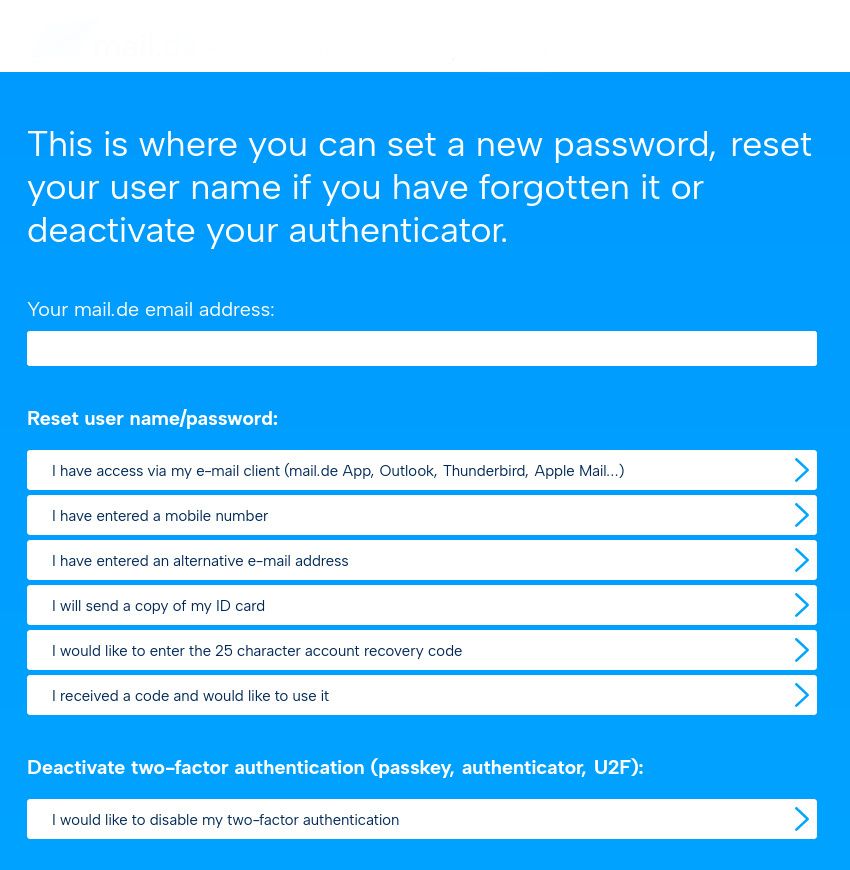
If you need help resetting your password, you can access an illustrated guide here.
Note: Only the password reset options displayed on the "Forgot password" page are offered. If none of the options can be used, password reset is excluded for security and data protection reasons.
Mail Delivery System - Email bounced back, what now?
You have received an automatic email from "Mail Delivery System"?
This means: Your sent email could not be delivered to the recipient. Such returns are called bounce emails.
No worries - in most cases, this can be resolved quickly.
The most common causes:
-
Typo in the email address
The address does not exist (e.g. "maxmustermann@gamil.com" instead of "maxmustermann@gmail.com").
→ Check the address again carefully and correct it → resend. -
Recipient's mailbox is full
The recipient has not cleared their mailbox; new emails are rejected.
→ Try again in a few hours or days. -
Address no longer exists or has been deactivated
The recipient has canceled the address, the account was blocked or deleted.
→ Use an alternative contact method (other email, phone, etc.).
What does a bounce email say?
Please read the error message carefully – it almost always contains the reason. The messages are usually in English (because mail servers communicate worldwide this way). Common examples:
- ""550 5.1.1 User unknown"" or ""No such mailbox"" → Address does not exist
- ""552 Mailbox full"" or ""Over quota"" → Mailbox full
- ""Recipient address rejected"" → Address rejected (e.g. due to typo or blocklist)
What can you do now?
- Check the recipient address again and correct it → this is often all that's needed.
- For repeated problems or more complicated messages: See our detailed overview.
- Important email and nothing helps? → Contact our support, we'll be happy to take a look.
Tip: Save important addresses directly in your mail.de address book to avoid typos from the start.

