Encrypting Emails in Apple Mail
If you have basic questions about PGP encryption, see here for more information.
To encrypt emails in Apple Mail on Mac OS X, download the software package "GPG Suite" from
"https://gpgtools.org/" and install it on your Mac:
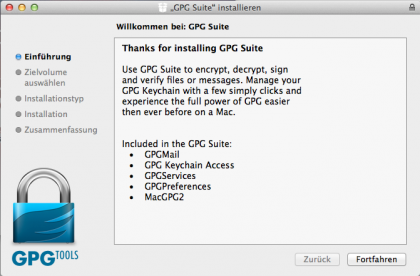
In the first step, create a new key pair for your mail.de address.
Do NOT check "Upload key after generation", because a published PGP key on a public key server cannot be removed.
Upload your public key to the key server only when you are sure you will use this key in the future:

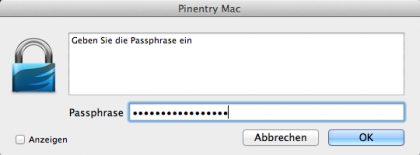
After creating the key pair, protect your private key with a passphrase—a carefully chosen and long password.
The passphrase is required whenever you encrypt or decrypt an email:
Your new key pair will now appear in the "GPG Keychain".
The label "sec / pub" indicates that you have both the private (sec) and public (pub) key.
Never lose the key pair; if lost, encrypted emails cannot be read!
It is strongly recommended to export your PGP key pair and back it up on an external drive or USB stick:

If someone wants to send you an encrypted email, simply share your public key.
You can also upload your public key to a public key server.
To do this, in the menu bar of the PGP program, click "Keys" → "Send to Key Server".
You can also search for other users' public keys on the key server by clicking "Search for Keys".
You can now close the "GPG Key Management".
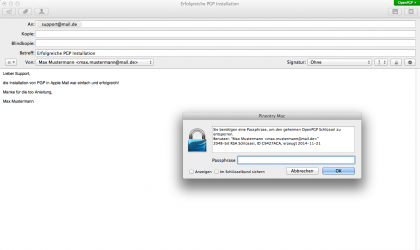
When you open a new email in Apple Mail, you will see two new buttons next to the signature selection—one with a lock icon and one with a gear icon.
Use the lock to encrypt your email and the gear to sign it.
It is recommended to always sign your emails to confirm your identity to the recipient.
Clicking the "lock" will prompt you to enter your passphrase.
After entering the passphrase, the window closes and your email can be sent encrypted: